Automated OS upgrades
This tutorial describes how to configure the system upgrade mechanism to trigger the OS upgrade at a designated day and time of the week and orchestrate the upgrade among different hosts. In this tutorial we use a Ubuntu/Debian site as an example. Avassa provides OS upgrade agents for a number of distributions. For the latest list see the readme in https://gitlab.com/avassa-public/os-upgrade.
A process to perform OS upgrades by hand can be found in Manual OS upgrade document.
In order to get an understanding of the OS upgrade architecture and mechanisms, read our OS upgrade fundamentals.
The overall procedure to use the Avassa OS upgrade functions are:
- build the OS upgrade application for your system, we provide different upgrade applications for different OSes.
- deploy the OS upgrade application to corresponding hosts
- configure OS upgrade windows
- monitor the automatic OS upgrades
Building the OS upgrade application implemented by Avassa
Building your own image is optional. Prebuilt images can be found in the image registry
If you use the prebuilt images, the approle below still must be created. But
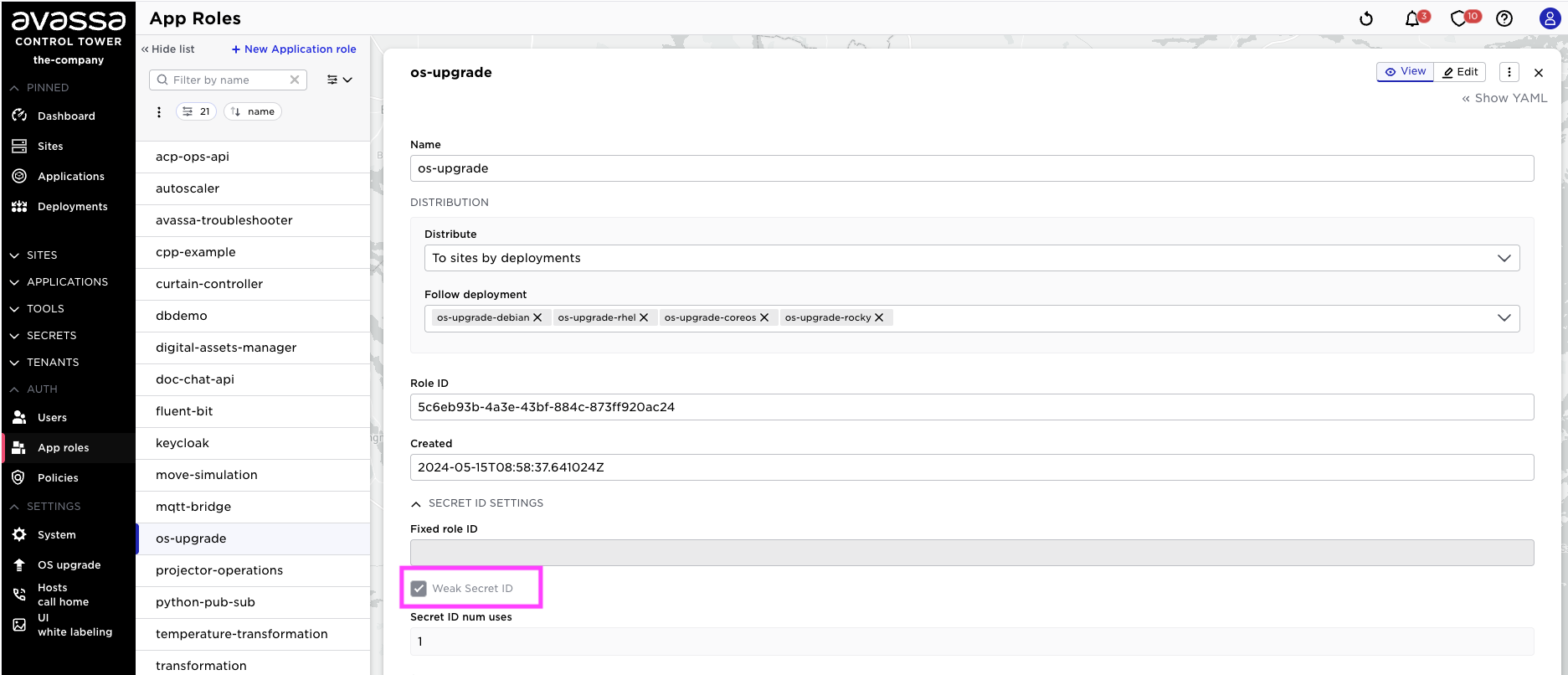
make sure you set weak-secret-id when creating the approle.
The procedure below applies to all supported distributions. Where the steps differ (notably the application specification), examples are provided for Debian/Ubuntu, Rocky Linux, and Fedora CoreOS.
Start by checking out the git repository https://gitlab.com/avassa-public/os-upgrade or downloading the files mentioned below as needed.
Create the approle
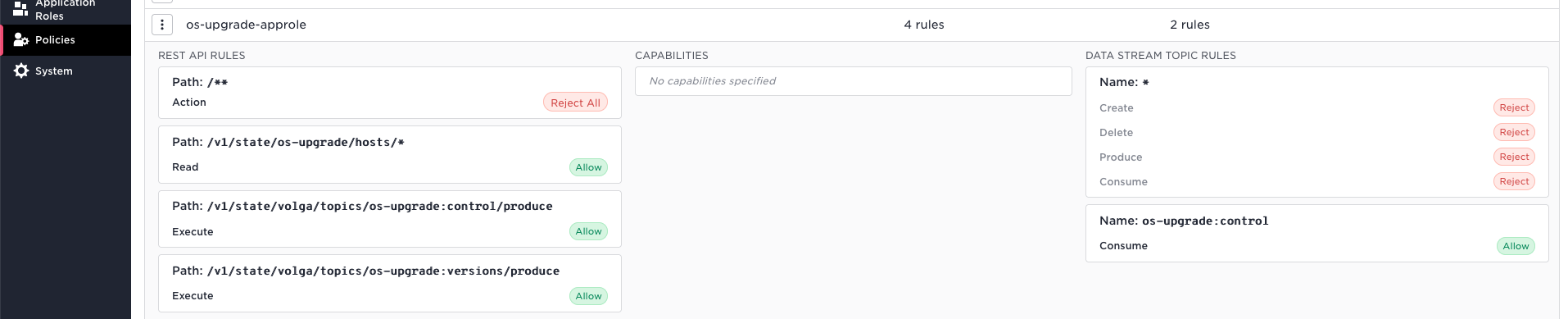
Create an approle and a corresponding approle policy. An approle is the authentication mechanism used by the applications to be able to use the Avassa APIs locally on the host they are running on.
cat yaml/approle.yaml | supctl create strongbox authentication approles
cat yaml/approle-policy.yaml | supctl create policy policies
Look up the role-id
By default an approle authentication mechanism requires two secret
parts: one part built into the
image and one part is provided at runtime. The secret part to build into the
image is called role-id and is generated when the approle is created. To
look up the role-id run:
supctl show strongbox authentication approles os-upgrade --fields role-id
role-id: 4c6eb93b-4c3e-43ff-884c-273ff920ac24
Store the value (without the role-id: prefix) in a local file so that the
docker build can read it as a secret:
echo '<replace me with role-id from above>' > role-id
Build and push the image
The role-id is built into a container image using the Dockerfile in the
repository above. Replace the VERSION value with the target version to
build. latest is fine for development purposes, but locking the application
specification to a specific version enables more controlled application
upgrades.
The list of published versions can be found at https://gitlab.com/avassa-public/os-upgrade/container_registry.
You must docker login to the registry before pushing.
docker build \
    -t registry.environment.name.avassa.net/avassa/os-upgrade:<VERSION> \
    --secret id=approle,src=role-id \
    --build-arg IMAGE=registry.gitlab.com/avassa-public/os-upgrade \
    --build-arg VSN=<VERSION> \
    .
docker push registry.environment.name.avassa.net/avassa/os-upgrade:<VERSION>
An alternative to baking the role-id into the image is to edit the approle
to set weak-secret-id: true in the approle YAML. This parameter removes
the requirement for the secret part built into the image so the container
images published by Avassa
may be used directly without building your own image.
Building a multi-architecture image
If your fleet mixes architectures — for example x86_64 servers and ARM64
edge devices (Raspberry Pi 4/5, NVIDIA Jetson, AWS Graviton, Ampere) — you
need a single image tag whose manifest list resolves to the correct
architecture for each host. Avassa publishes the upstream
registry.gitlab.com/avassa-public/os-upgrade image as a multi-arch
manifest (linux/amd64 and linux/arm64), so you only need to preserve
that property when re-tagging it with your approle.
-
Create a buildx builder that supports multi-platform builds (the default
dockerdriver does not). This is a one-time setup per machine:docker buildx create --name multiarch --driver docker-container --bootstrap --useVerify it is running and lists both architectures:
docker buildx lsThe
multiarchbuilder should appear withlinux/amd64andlinux/arm64under PLATFORMS. -
Build and push for both architectures in a single command. Multi-platform builds must use
--push(or--output) — they cannot be loaded into the local docker image store:Build and push multi-arch imagedocker buildx build \--platform linux/amd64,linux/arm64 \-t registry.environment.name.avassa.net/avassa/os-upgrade:<VERSION> \--secret id=approle,src=role-id \--build-arg IMAGE=registry.gitlab.com/avassa-public/os-upgrade \--build-arg VSN=<VERSION> \--push \. -
Verify the pushed image is a manifest list with both architectures:
docker buildx imagetools inspect \registry.environment.name.avassa.net/avassa/os-upgrade:<VERSION>You should see two
Manifests:entries, one forlinux/amd64and one forlinux/arm64.
If the build fails with Multi-platform build is not supported for the docker driver, the default builder is still selected. Run
docker buildx use multiarch and try again.
With a multi-arch image in place, the same application specification deploys to both x86 and ARM hosts — the container runtime on each host pulls the matching architecture automatically. No per-arch site labels or separate application specs are needed.
Create the application specification
By default the application deployment matches the os-type site label to
determine the sites where the application must be deployed. Make sure to
either label the sites correspondingly or to modify the application
deployment to indicate the sites the worker application should be deployed
to. The expected label values are:
os-type = debian— Debian/Ubuntu hostsos-type = dnf— Rocky Linux (and other DNF-based distributions)os-type = coreos— Fedora CoreOS hosts
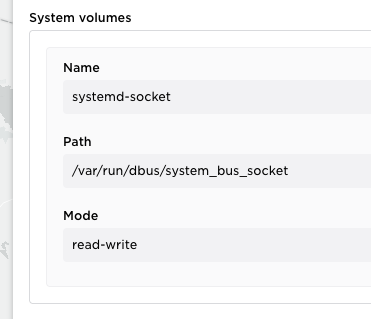
systemd
Ubuntu/Debian and Rocky/RHEL needs access to systemd.
Add the following configuration to system settings
Debian/Ubuntu
name: os-upgrade-debian
version: "<VERSION>"
services:
  - name: worker
    mode: one-per-matching-host
    containers:
      - name: main
# If not building your own image, use the latest version
# from here https://gitlab.com/avassa-public/os-upgrade/container_registry/6340772
# e.g.
#        image: registry.gitlab.com/avassa-public/os-upgrade:2026.5.0
        image: avassa/os-upgrade:<VERSION>
        cmd: [ "os_upgrade.debian" ]
        approle: os-upgrade
        container-layer-size: 0B
        env:
          API_CA_CERT: ${SYS_API_CA_CERT}
          HOST: ${SYS_HOST}
          APPROLE_SECRET_ID: ${SYS_APPROLE_SECRET_ID}
          LOG_LEVEL: INFO
        mounts:
          - volume-name: systemd-socket
            mount-path: /var/run/dbus/system_bus_socket
          - volume-name: apt-conf-d
            mount-path: /data/apt.conf.d
        user-namespace:
          host: true
        security:
          apparmor:
            disabled: true ## apparmor prevents systemd socket access
    volumes:
      - name: systemd-socket
        system-volume:
          reference: systemd-socket
      - name: apt-conf-d
        config-map:
          items:
            - name: 90avassa
              data-verbatim: |
                // the reboot is handled by the os-upgrade handler
                Unattended-Upgrade::Automatic-Reboot "false";
                APT::Periodic::Update-Package-Lists "always";
                APT::Periodic::Unattended-Upgrade "always";
                Unattended-Upgrade::Remove-Unused-Kernel-Packages "true";
                Unattended-Upgrade::Remove-New-Unused-Dependencies "true";
sed -e 's|%VERSION%|2026.5.0|' \
    -e 's|%IMAGE%|avassa/os-upgrade:2026.5.0|' \
    yaml/application.debian.yaml.in \
    > application.debian.yaml
Rocky Linux
The Rocky Linux worker integrates with dnf-automatic and uses a SELinux
exemption rather than the AppArmor one. A custom automatic.conf can be
supplied through the config-map below.
name: os-upgrade-dnf
version: "<VERSION>"
services:
  - name: worker
    mode: one-per-matching-host
    containers:
      - name: main
        image: avassa/os-upgrade:<VERSION>
        cmd: [ "os_upgrade.dnf" ]
        approle: os-upgrade
        container-layer-size: 0B
        env:
          API_CA_CERT: ${SYS_API_CA_CERT}
          HOST: ${SYS_HOST}
          APPROLE_SECRET_ID: ${SYS_APPROLE_SECRET_ID}
          LOG_LEVEL: INFO
        mounts:
          - volume-name: systemd-socket
            mount-path: /var/run/dbus/system_bus_socket
          - volume-name: dnf-automatic-conf
            files:
              - name: automatic.conf
                mount-path: /data/automatic.conf
        user-namespace:
          host: true
        security:
          selinux:
            disabled: true ## SELinux prevents systemd socket access
    volumes:
      - name: systemd-socket
        system-volume:
          reference: systemd-socket
      - name: dnf-automatic-conf
        config-map:
          items:
            - name: automatic.conf
              data-verbatim: |
                [commands]
                upgrade_type = security
                [emitters]
                emit_via = stdio
                [base]
                debuglevel = 1
Fedora CoreOS
Fedora CoreOS uses A/B image-based upgrades coordinated through zincati's fleet-lock mechanism, so the worker runs in host networking mode and does not need a systemd socket mount.
name: os-upgrade-coreos
version: "<VERSION>"
services:
  - name: worker
    mode: one-per-matching-host
    network:
      host: true
    containers:
      - name: main
        image: avassa/os-upgrade:<VERSION>
        cmd: [ "os_upgrade.coreos" ]
        approle: os-upgrade
        container-layer-size: 0B
        user-namespace:
          host: true
        env:
          AVASSA_API: https://localhost:4646
          API_CA_CERT: ${SYS_API_CA_CERT}
          HOST: ${SYS_HOST}
          APPROLE_SECRET_ID: ${SYS_APPROLE_SECRET_ID}
          LOG_LEVEL: INFO
See the yaml/ directory of the os-upgrade
repository for the matching
.in templates and ready-to-use deployment YAMLs.
Deploy and designate the worker application
With the above application specification you can now deploy that to sites where you have Debian running.
Assuming you have labelled those with os-type you can use a deployment shown below:
name: os-upgrade-debian
application: os-upgrade-debian
placement:
  match-site-labels: os-type = debian
Only the site provider tenant can run an OS upgrade worker application.
In order for the Avassa system to know that this application handles OS upgrades, the
tenant deploying the application designates it as such with the following configuration.
Note that the name here refers to the application name, not necessarily the
deployment name:
supctl create os-upgrade <<EOF
worker-applications:
  - name: os-upgrade-debian
EOF
Or in the UI
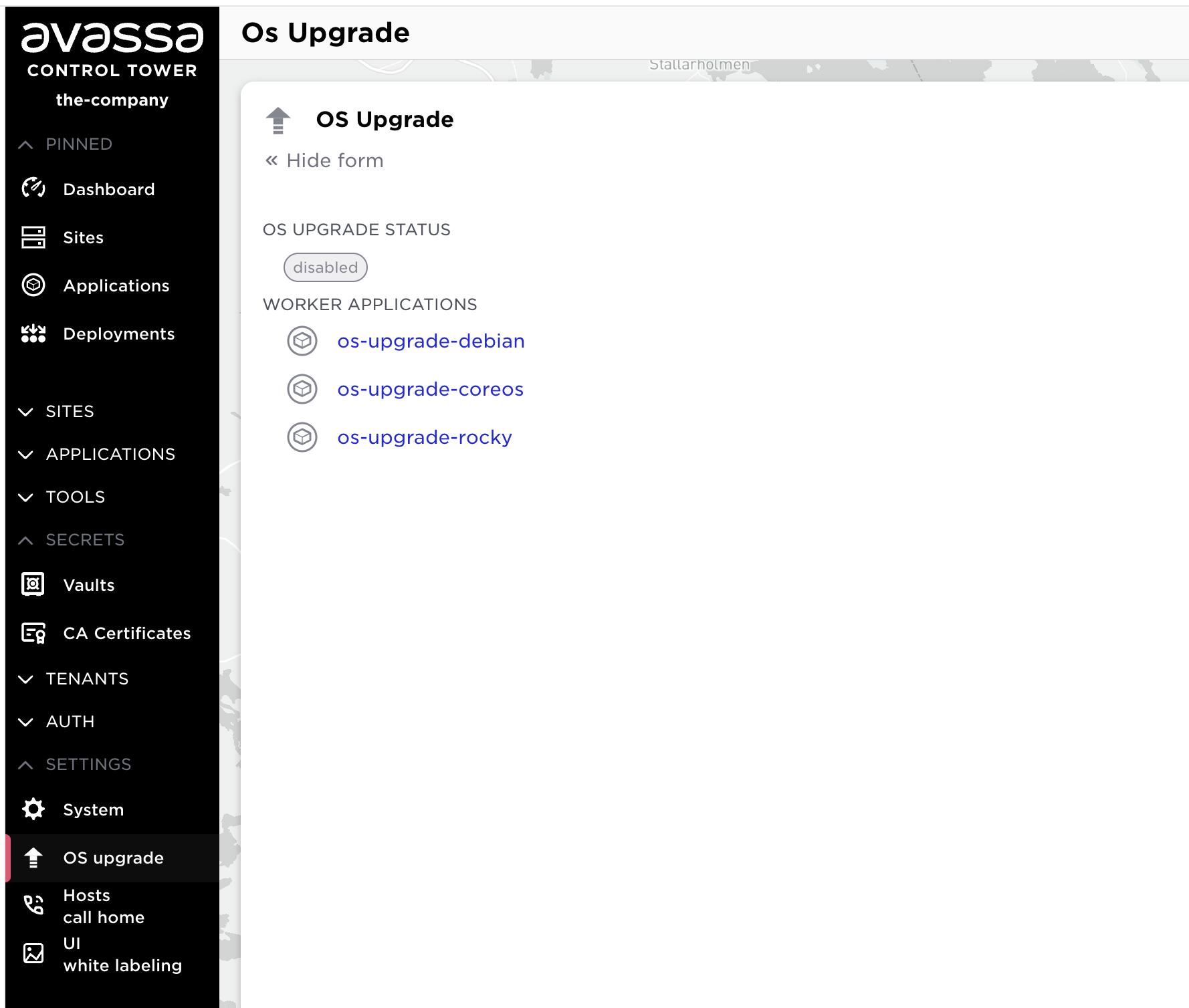
With this configuration in place the system knows that the OS upgrades should
run on any site that has the os-upgrade-debian application deployed to at
least one host. Multiple applications could be specified in the os-upgrade
object, in which case the OS upgrades run where any of these applications
deployed.
OS upgrade windows configuration
Now, everything is in place to configure an OS upgrade window that will control when the OS is upgraded:
supctl create system site-profiles <<EOF
name: sweden
os-upgrade-windows:
  - days-of-week: Friday, Saturday
    start-time: 01:00
    timezone: site-local
    duration: 4h
EOF
Assign this profile to relevant sites (note that only one site-profile can be assigned to a site, so if a site already has a site-profile, then the profile itself may need to be updated):
supctl merge system sites stockholm-sergel <<EOF
site-profile: sweden
EOF
This configuration tells the system that the OS upgrades should run on any site
that has the os-upgrade-debian application deployed to at least one host and the
upgrades should be initiated each week on Friday and Saturday, at 01:00 local
time and must not exceed 4 hours. The controller assumes that all hosts running
a service instance that belongs to os-upgrade-debian application will receive
the commands as a part of the OS upgrade process.
Inspect the OS upgrade status on a specific site
In order to inspect whether the OS upgrade mechanism is configured and running
as expected on site site-name use the following command:
supctl show --site site-name os-upgrade
Example output:
worker-applications:
  - name: os-upgrade-debian
  - name: os-upgrade-rhel
os-upgrade-windows:
  - days-of-week: Friday, Saturday
    start-time: 01:00
    timezone: site-local
    duration: 4h
status: idle
next-upgrade-in: 1d4h18s
scheduled-workers:
  - host: host01
    application: os-upgrade-debian
  - host: host02
    application: os-upgrade-debian
  - host: host03
    application: os-upgrade-debian
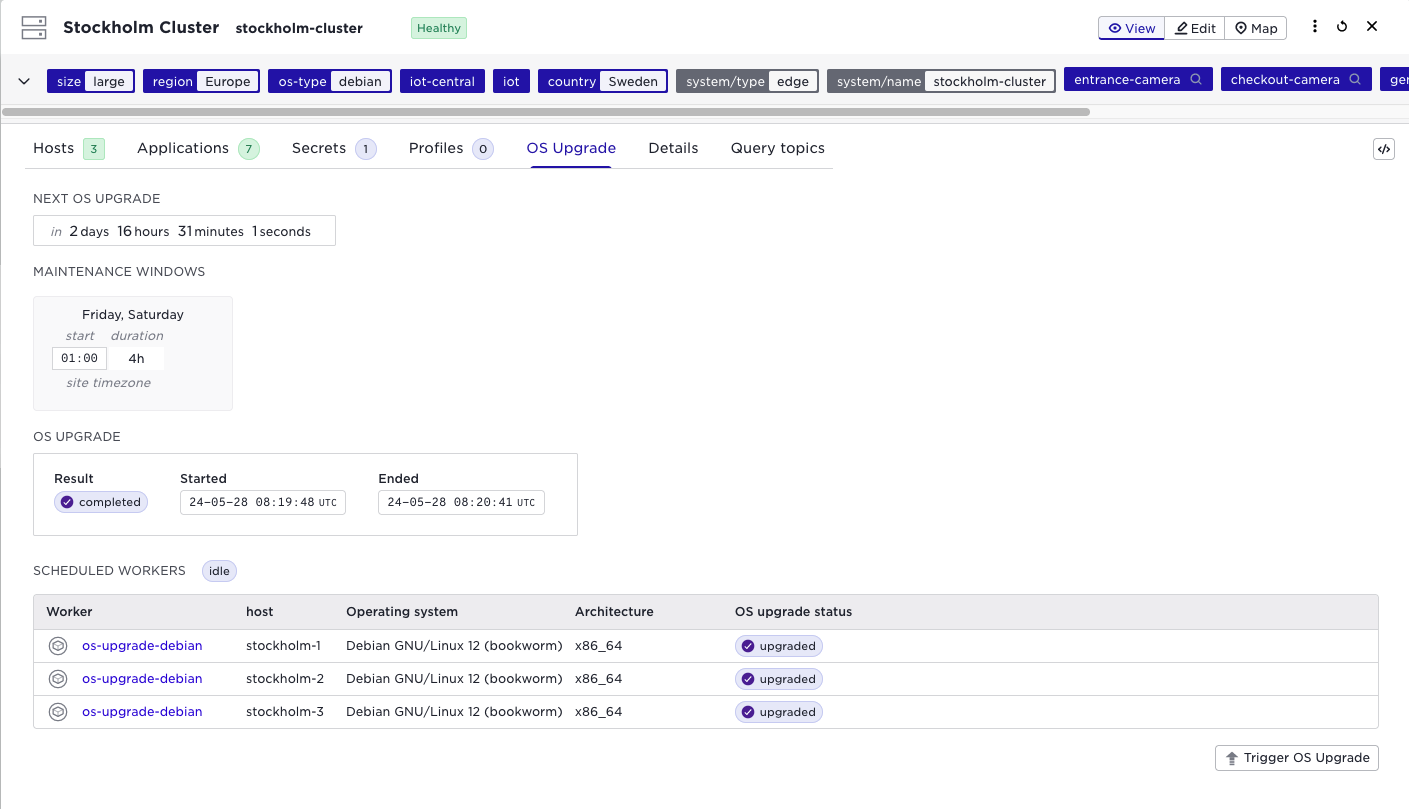
This tells us that the OS upgrade is currently idle (no upgrade in progress).
The next OS upgrade is scheduled to start in 1 day 4 hours and 18 seconds. If
the upgrade was to start now, then hosts host01, host02 and host03 would
be included in the upgrade, because each of them is running an instance of
a service from os-upgrade-debian worker application. If a host is not
mentioned in this list, it is assumed that the OS upgrades for this host are
externally managed, so an upgrade would still succeed even if not all hosts on
the site are managed.
A different example output shows the upgrade in progress:
worker-applications:
  - name: os-upgrade-debian
  - name: os-upgrade-rhel
os-upgrade-windows:
  - days-of-week: Friday, Saturday
    start-time: 01:00
    timezone: site-local
    duration: 4h
status: in-progress
scheduled-workers:
  - host: host01
    application: os-upgrade-debian
  - host: host02
    application: os-upgrade-debian
  - host: host03
    application: os-upgrade-debian
last-upgrade-info:
  start-time: 2023-04-20T01:00:00Z
  timeout-in: 3h40m17s
  hosts:
    - hostname: host01
      status: scheduled
    - hostname: host02
      status: prepared
    - hostname: host03
      status: upgrading
This example tells us that the upgrade is currently ongoing. It has started at
the specified start-time and is expected to time out if not completed within
the next 3 hours 40 minutes and 17 seconds (from the time the output was
generated). Three hosts are a part of the upgrade: host01 has not replied to
the prepare command yet, host02 has completed the prepare phase and is
awaiting its turn to upgrade and host03 has completed the prepare phase and
has been issued the upgrade command which it has not yet replied to, so the
upgrade is ongoing on this host.
When the upgrade is completed (or aborted due to timeout or failure), the
last-upgrade-info shows the status of the latest upgrade.
Inspect the software versions as reported by the worker applications
The worker application may detect the version of the OS or the versions of the packages running on the host. They are reported each time the worker notices the change and are stored by the controller. To inspect the latest versions reported by the workers on a specific site:
supctl show --site site-name os-upgrade hosts
Example output:
- hostname: host01
  timestamp: 2023-04-17T01:12:24Z
  versions:
    linux-image: 5.15.83-ubuntu0
    docker: 20.10.1
- hostname: host02
  timestamp: 2023-04-22T10:14:42Z
  versions:
    linux-image: 5.15.94-ubuntu0
    docker: 20.10.4
- hostname: host03
  timestamp: 2023-04-22T10:16:33Z
  versions:
    linux-image: 5.15.94-ubuntu0
    docker: 20.10.4
The versions is a key-value mapping published by each worker, so the actual
packages or other key names and corresponding reported versions are defined by
the worker implementation.
E.g. the kernel version can be seen in the UI
Before upgrade

After upgrade

Troubleshooting
401 Unauthorized when pushing to the Control Tower registry
Run docker login registry.environment.name.avassa.net with credentials
that have push access, then retry the push. For multi-arch builds with
docker buildx ... --push, the authentication step happens at push time,
so the build itself may complete successfully before failing on push.
Multi-platform build is not supported for the docker driver
The currently selected buildx builder uses the default docker driver,
which only supports single-platform builds. Switch to a docker-container
builder (see Building a multi-architecture image):
docker buildx use multiarch
If no such builder exists yet, create one with:
docker buildx create --name multiarch --driver docker-container --bootstrap --use
First multi-arch build is very slow
When building for an architecture that doesn't match the host CPU, buildx
runs the foreign-arch stage under QEMU emulation. The first build pays the
emulation cost in full; subsequent builds reuse the layer cache and are
much faster. Because the Avassa Dockerfile only re-tags the upstream
image and adds the role-id, the per-arch work is small and emulation
overhead is limited.
A host is stuck in upgrading status
Inspect the worker logs to see what the worker is doing:
supctl --site site-name logs applications os-upgrade-debian
The upgrade has a hard timeout driven by the OS upgrade window's
duration — if the host never replies, the controller aborts the upgrade
when that timer expires and the site returns to idle. Common causes:
- The host rebooted during the
upgradephase (expected for kernel upgrades). The worker should report success on the next start; if it doesn't, check that the worker application is still deployed and running. - The worker container crashed. Check
supctl show applications os-upgrade-debianfor restart counts. - For Fedora CoreOS specifically: the worker times out waiting for a
fleet-lock request. Verify that
/etc/zincati/config.d/51-fleet-update.tomlis in place and points athttp://127.0.0.1:8000/fleet_lock/.
The OS upgrade never starts at the scheduled time
Check that the site actually has the worker application deployed and that
the site has a site-profile with os-upgrade-windows assigned:
supctl show --site site-name os-upgrade
If scheduled-workers is empty, the worker application is not deployed
to any host on the site, or the host labels don't match the deployment's
match-site-labels expression.